
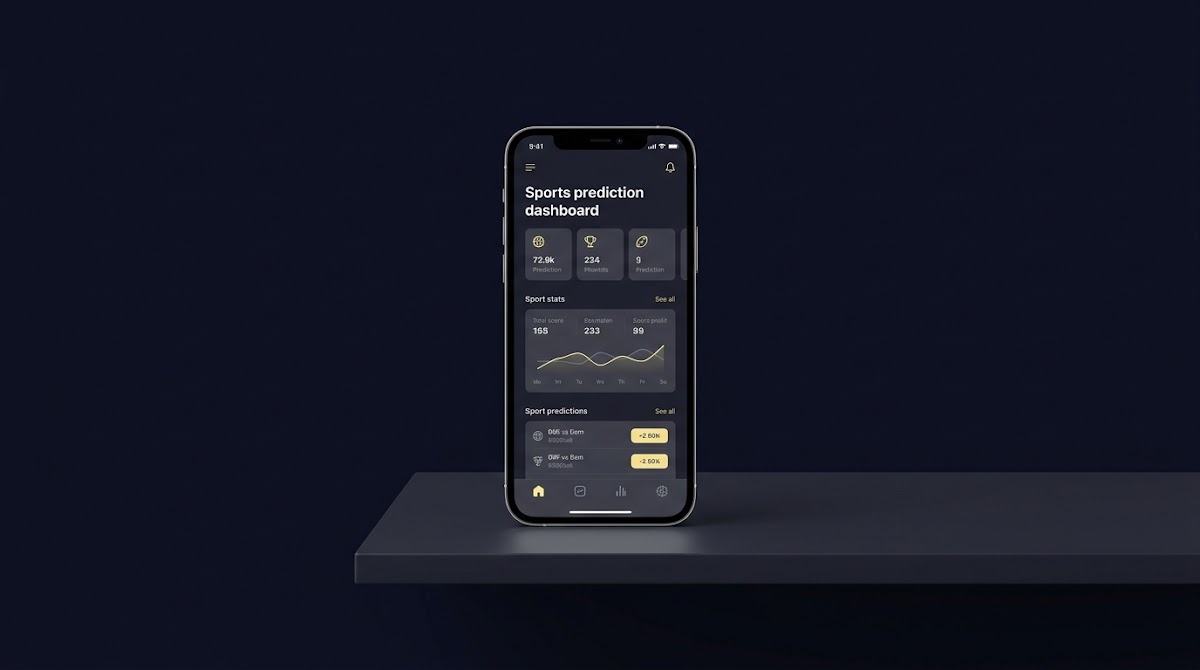
How to Use FundedPlays on Mobile: quick start
This short guide shows how to open FundedPlays on a phone or tablet and get an app-like experience quickly. Start by opening FundedPlays in your device browser, then use the Home Screen or install prompt to create a shortcut or PWA. How to Use FundedPlays on Mobile is focused on fast, repeatable steps you can follow in minutes.
Two actions get most users where they need to be: sign in through your mobile browser, and add FundedPlays to your Home Screen or accept a browser install prompt. These two actions shorten the time between sessions and make the dashboard easy to reopen without typing the address every time.
Before you start using challenges regularly, enable multifactor authentication on your account to reduce the chance of an account takeover. Guidance later in this article explains why MFA helps and how to adopt device-level protections for account security.
Quick checklist to get started now:
- Open your phone browser and visit the FundedPlays site.
- Sign in and confirm your account details.
- Add the site to your Home Screen or accept the Install app prompt when it appears.
- Enable multifactor authentication and set device locks like PIN or biometrics.
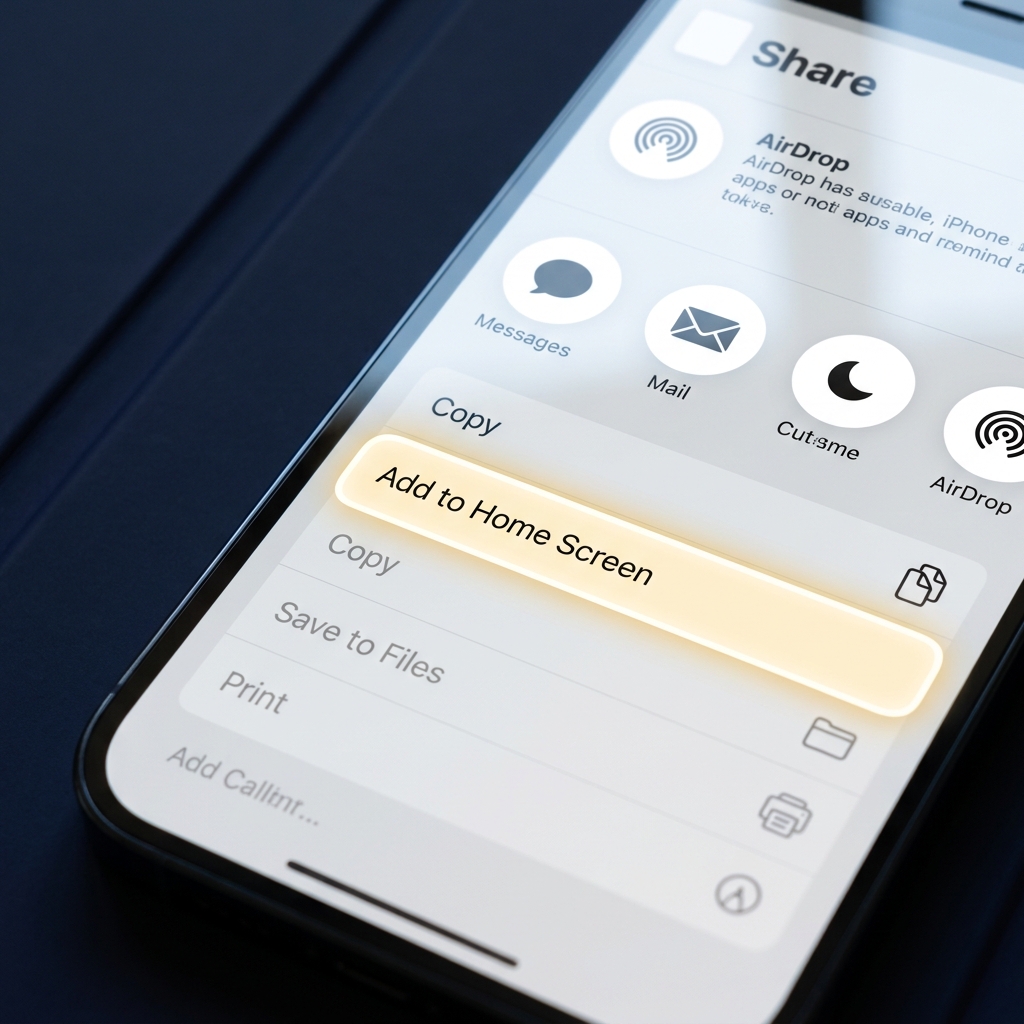
Why these steps matter: adding the site to Home Screen creates a standalone icon so you can return directly to dashboards and active challenges without navigating bookmarks, and MFA adds a strong layer of account protection.
Try the FundedPlays Challenges page for setup and challenge details
Add FundedPlays to your Home Screen for quicker access and enable multifactor authentication in account settings to protect your mobile access.
Why use FundedPlays on mobile?
Mobile access gives quick, on-the-go entry to challenge dashboards, live odds, and account progress so you can check objectives and make small adjustments during the day. Many users find the Home Screen icon or installed PWA faster than opening a browser tab and typing a URL.
Using an app-like shortcut reduces friction when you want to reopen an active challenge quickly, and a full-screen PWA can feel like a dedicated app with simpler navigation. This convenience helps maintain disciplined routines for prediction and tracking without being distracted by other tabs.
Expect layout differences between mobile and desktop. Core functionality such as submitting predictions, viewing challenge rules, and tracking performance is generally available on mobile, but menus and screen arrangements may differ. If you need feature parity confirmation for a specific workflow, check the platform help pages for the latest guidance and see the FundedPlays blog article on how evaluations work how FundedPlays evaluations work.
Browser prompts and availability can vary by device model, operating system, and the browser version you run; if a prompt does not appear, follow the manual Home Screen steps later in this guide for your platform.

Which phones and browsers support app-like access
Most modern phones support creating Home Screen shortcuts or installing progressive web apps. On iPhone and iPad, the Home Screen shortcut is created through Safari’s Share menu; this produces a standalone icon that opens the site directly in a single window, similar to an app. See the Apple Support instructions for details and menu names Apple Support page for adding web links to the Home Screen. See also Turn a website into an app in Safari for related steps.
For Android devices using Chrome, eligible sites can be installed via an Install app or Add to Home screen prompt, which provides an app-like, full-screen experience without the browser chrome. The Google Developers guide explains the install flow and how PWAs behave once added Google Developers guide to installing PWAs. Additional practical steps for adding PWAs to a home screen are available in the Pandasuite guide.
Open FundedPlays in your mobile browser, sign in, add the site to your Home Screen or accept the install prompt to create a PWA shortcut, and enable multifactor authentication for security.
Other browsers may support similar shortcuts or limited PWA features, but behavior differs by browser engine and regional rules. Apple’s confirmation that Home Screen web apps remain supported in current iOS builds reinforces continued viability of web-based app-like access on iPhone, though specifics can change with updates WebKit blog post on Home Screen web apps. Community discussions about cross-browser Add to Home Screen support can be helpful see this Stack Overflow thread.
If you are unsure which option your browser offers, consult the browser help pages or try the Share or menu options described in the platform sections below.
Add FundedPlays to your Home Screen - step-by-step
iPhone and iPad: Safari Share menu steps
1. Open Safari and navigate to the FundedPlays site.
2. Tap the Share icon at the bottom of the screen.
3. Scroll the Share menu and choose Add to Home Screen.
4. Edit the name if you want, then tap Add to create an icon on your Home Screen. The icon will open FundedPlays in a standalone window.
Android with Chrome: Install or Add to Home screen flow
1. Open Chrome and visit the FundedPlays site.
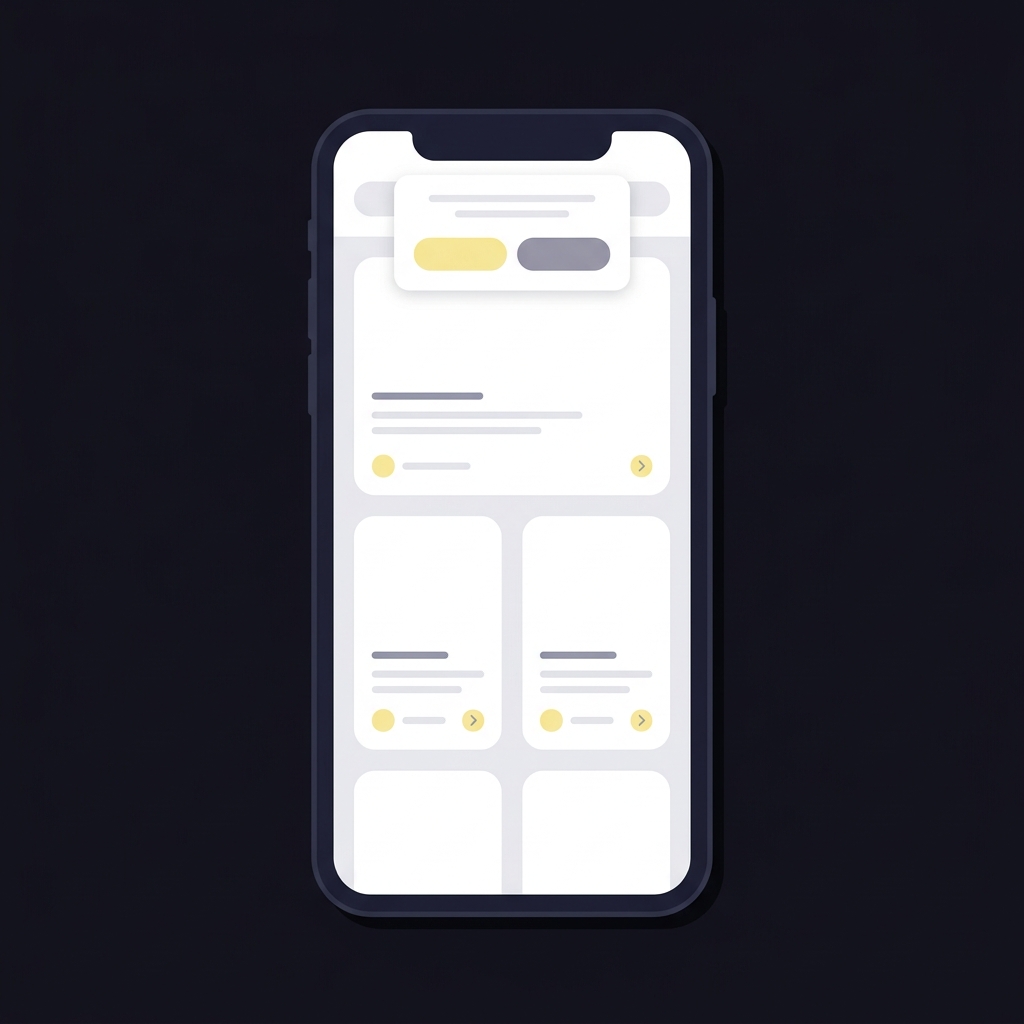
2. If the site is a PWA and the browser recognizes it, an Install app or Add to Home screen prompt will appear in the address bar or menu.
3. Tap Install or Add, then follow on-screen prompts to place the icon on your Home Screen or in your app list.
Installed PWAs can open full-screen and behave like a dedicated app, improving focus and easing navigation. The Google Developers documentation shows how installable PWAs are identified and how the user prompts appear Google Developers guide to installing PWAs.
What the installed experience looks like
After adding FundedPlays to your Home Screen or installing it, you will see a standalone icon. Tapping it opens the site directly and often removes the browser address bar for a cleaner, app-like view. Navigation tends to be faster because you avoid history stacks and multiple open tabs.
Expect slight layout and navigation differences compared with a desktop browser; however, the core challenge workflows remain accessible. If you notice missing features, check for browser updates or consult the platform help pages for version-specific notes.
Mobile account setup and security best practices
Set up your account on mobile with security in mind from the start. Enable multifactor authentication to add an extra verification step for sign-ins and reduce the likelihood of unauthorized access. U.S. cybersecurity guidance strongly recommends MFA as an effective defense against account takeover attempts CISA guidance on implementing multifactor authentication.
Practices to secure your mobile access include using device-level PINs or biometric locks, keeping your browser and operating system up to date, and avoiding public Wi-Fi when performing sensitive account actions. These simple controls reduce exposure when you use FundedPlays on a phone or tablet.

When you sign in from a shared device, always log out at the end of the session and consider using the platform’s session management or account activity view if available. If you suspect unusual activity, change your password and re-check MFA settings immediately.
Use strong, unique passwords and a reputable password manager to reduce the friction of complex credentials while maintaining good security hygiene across accounts.
Troubleshooting common mobile issues
When a page fails to load or you see a login loop on mobile, the first and simplest fix is to clear cookies and cached data, then try again. For Safari on iPhone, the Apple Support steps explain how to clear history and cookies which often resolves persistent loading or sign-in failures Apple Support guide to clearing Safari history and cookies.
For Firefox on Android and other browsers, clearing browsing data is a similar process that can remove stale session tokens and cached files; Mozilla provides step names and menu locations for Firefox for Android Mozilla Support article on clearing browsing data.
Other troubleshooting steps to try before contacting platform help include verifying your browser version, confirming the PWA or Home Screen install status, and restarting the device. If problems persist after these steps, capture screenshots and the exact browser version to include when you contact the platform support team.
Daily mobile workflows and tips for consistent performance
Build a short, repeatable routine so you can check challenges and update predictions without creating risk. A sample micro-routine could be: open the Home Screen icon, review active challenge objectives, record any changes in odds or lineups, then submit updates within your scheduled window.
Prefer Home Screen access or an installed PWA for speed. Keep a single bookmarks folder for tournament pages or recurring challenges to reduce the time spent navigating. Discipline and consistency matter more than frequency; set a modest daily check window and stick to it to avoid emotional or hurried decisions.
quick access routine for FundedPlays on mobile
Run these steps once to simplify daily entry
Organize bookmarks by season or sport to find the right challenge quickly. Avoid shortcuts that bypass challenge rules or encourage rapid, high-risk actions. A steady, measured routine preserves your ability to follow objectives and manage drawdown limits.
Use the installed PWA experience where available for fewer navigation frictions and faster reloads. If you track plays manually, keep a short digital or paper log of each session so you can analyze consistency over time rather than reacting to short-term outcomes.
Conclusion and next steps
Recap the three most important actions: open FundedPlays in your mobile browser, add the site to your Home Screen or accept the install prompt to get an app-like experience, and enable multifactor authentication to protect your account. These actions make mobile access faster and safer for daily challenge work.
Platform behavior can change with browser updates and regional rules; if you encounter differences in prompts or install options, consult the browser help pages and the FundedPlays help resources for the latest instructions. Remember that FundedPlays is a skill-based challenge platform and does not guarantee earnings; always follow challenge rules and practice responsible, measured participation.
You can add FundedPlays to your Home Screen or install it as a progressive web app in compatible browsers, which gives an app-like experience without a native app.
MFA is not always required but is strongly recommended to reduce account-takeover risk and improve security for mobile sign-ins.
Clear the browser cache and cookies, check your browser version, restart the device, and if the problem persists contact platform support with details.
References
- https://www.fundedplays.com
- https://support.apple.com/guide/iphone/add-web-links-to-the-home-screen-iphc0c555ca/ios
- https://support.apple.com/guide/iphone/open-as-web-app-iphea86e5236/ios
- https://developer.chrome.com/docs/webapps/install/
- https://webkit.org/blog/14769/home-screen-web-apps-to-continue-working-in-the-eu/
- https://docs.pandasuite.com/essentials/web-publishing/add-your-pwa-to-home-screen/
- https://www.cisa.gov/mfa
- https://www.fundedplays.com/challenges
- https://support.apple.com/en-us/HT201265
- https://support.mozilla.org/en-US/kb/clear-your-browsing-history-and-data-firefox-android
- https://stackoverflow.com/questions/54001523/is-add-to-home-screen-feature-of-pwa-supported-in-ios
- https://www.fundedplays.com/blogs
- https://www.fundedplays.com/blogs/how-fundedplays-evaluations-work