

How to Troubleshoot Common Account Issues: what to check first
When you cannot access an account, a calm, prioritized approach reduces mistakes and speeds recovery. Start with a short checklist that you can complete before opening a support ticket: check the service status page, confirm your credentials, try a private browser window, verify your internet connection, and look for official outage notices.
Do not immediately change multiple passwords or disclose one-time codes to others. If you suspect reused or compromised credentials, avoid reusing the same password during a recovery attempt and prepare to enroll stronger multi-factor protections later; national guidance now prioritizes phishing-resistant MFA over SMS where possible, as a longer-term defense CISA implementing phishing-resistant MFA fact sheet.
Service status pages and outage notices can confirm whether a login problem affects many users or just you; this step prevents unnecessary troubleshooting steps when the provider is already working on a fix. If the service is up, move to credential checks: verify the account name or email you entered and try a known-good device or network before initiating a reset.
Check your challenge account settings and recovery options
Follow the short recovery checklist above in order: confirm status, verify credentials, test a private browser, and check your connection before requesting a reset.
As you work through the checklist, keep a simple log of what you tried and any error messages you saw. That log helps if you need to escalate to support and it reduces repeated attempts that can trigger rate limits or lockouts.

Try an incognito or private browsing window to rule out saved sessions, extensions, or corrupt cookies that interfere with login forms. Private browsing isolates the site from extensions and stored cookies and often allows you to sign in if the public browser profile is the source of the problem.
Clearing cache and cookies can resolve issues where stale data or corrupted sessions prevent successful authentication, but be aware that this action can remove saved passwords and stored sessions in that browser profile. If you use a password manager, ensure it is available in the private window or copy needed credentials securely before clearing data.
Re-enter credentials carefully and check keyboard layout and caps lock. Mistyped usernames or swapped characters (for example on nonstandard keyboard layouts) are a frequent cause of failed sign-ins, and a deliberate, slow retype often resolves the issue.
First-response checklist: quick fixes that often work
Try an incognito or private browsing window to rule out saved sessions, extensions, or corrupt cookies that interfere with login forms. Private browsing isolates the site from extensions and stored cookies and often allows you to sign in if the public browser profile is the source of the problem.
Clearing cache and cookies can resolve issues where stale data or corrupted sessions prevent successful authentication, but be aware that this action can remove saved passwords and stored sessions in that browser profile. If you use a password manager, ensure it is available in the private window or copy needed credentials securely before clearing data.
Re-enter credentials carefully and check keyboard layout and caps lock. Mistyped usernames or swapped characters (for example on nonstandard keyboard layouts) are a frequent cause of failed sign-ins, and a deliberate, slow retype often resolves the issue.
Common login problems and how to fix them
Incorrect passwords are the most common cause of login failures. When many accounts fail with the same password, credential stuffing is often involved; using unique passwords per account and adding MFA substantially reduces this risk and the resulting lockouts 2025 Data Breach Investigations Report.
Account lockout or temporary suspension can follow repeated failed attempts or automated protection rules. Temporary lockouts usually expire after a short wait window, while permanent suspensions often require following the provider's appeal and verification process; avoid repeated retries that extend lockout timers.
Start with a prioritized checklist: confirm service status, verify credentials on a private browser, check device time and email folders, use backup codes if available, and only then follow the provider's reset flow or contact support with clear details.
Read error text carefully before guessing. Many error messages include a clear next step such as requesting a reset, confirming an email, or following a link to unlock the account. If a message is vague, note its exact wording and include that text when you contact support.
Two-factor authentication problems and immediate remedies
TOTP app codes often fail because the device clock is out of sync; correcting time synchronization on the phone or device typically resolves code mismatches, so check your device time and use the app or device resync features if available Microsoft support guidance on two-step verification issues.
SMS and voice one-time codes can fail for reasons ranging from carrier delays to prompt bombing; they are also more susceptible to interception or social engineering, so treat them as less secure than phishing-resistant options and enroll multiple factors where available to improve resilience NCSC guidance on multi-factor authentication.
If you have backup or recovery codes, use them as the next step. Backup codes are intended for one-time use in exactly these scenarios; store them offline or inside a secure password manager and apply them per the provider's instructions to regain access without a full account reset.
Why didn’t I get my verification email and how to fix delivery problems
Before assuming non-delivery, check spam, promotions, and other folders; also verify any email filters or rules that might redirect messages. Sometimes automated filters or tabs in common providers separate verification messages from the main inbox.
Request a resend and allow a short wait window for delivery; if a resend fails repeatedly, try a different contact method if the service supports it, such as a secondary email or phone verification. If messages are still missing, providers may be retrying or the sender could be blocked by recipient-side filtering.
In some cases, sender authentication problems cause delays or rejections: stricter requirements for SPF, DKIM and DMARC enforced since 2024 can prevent delivery if the sending domain is misconfigured, which affects verification messages until the sender corrects settings Google Workspace Updates on Gmail sender requirements.

If you suspect a provider-side issue and your inbox settings are correct, contact the service's support and provide the time you requested the verification and the email address used; that information helps them inspect delivery logs.
Secure account recovery and reset flows that protect you
Secure recovery balances restoring access with verifying identity. NIST guidance advises that resets should include appropriate identity verification and that routine forced password rotation is unnecessary without evidence of compromise, so follow the platform's approved reset flow rather than ad hoc identity disclosures NIST SP 800-63B digital identity guidelines.
Enroll multiple verified recovery methods and store recovery codes in a password manager or offline vault so you can use them without exposing sensitive data. Avoid sharing codes or reset links in untrusted channels, and prefer provider-approved verification steps such as secondary email or previously registered phone numbers.
When a reset requires support-assisted verification, expect requests for recent activity details, device information, and the last successful sign-in time; these are common, lightweight checks designed to confirm account ownership without collecting excessive sensitive documents.
How to improve long-term resilience with phishing-resistant MFA
Phishing-resistant MFA, such as FIDO or security keys and platform authenticators, reduces the risk of credential theft and prompt-based attacks and is recommended by national authorities as a stronger long-term control than SMS alone CISA implementing phishing-resistant MFA fact sheet.
Enroll at least two distinct MFA methods so loss of one factor does not lock you out. For example, register a hardware security key and a platform authenticator, and keep a set of offline backup codes in a secure location for emergency recovery.
Recommend authenticators to register and basic registration steps
Register at least two distinct methods
When a hardware token is lost, follow the provider's recovery procedure immediately and use your alternate registered factor or backup codes to regain access; plan redundancy ahead of time so recovery is straightforward.
Passwords, credential stuffing, and practical defenses
Credential stuffing uses stolen username and password pairs to attempt access across many sites; because reused passwords power these attacks, unique passwords per account combined with MFA materially reduce the risk of compromise and account lockouts 2025 Data Breach Investigations Report.
Use a password manager to generate and store long, unique passwords so you do not have to memorize them. A password manager also simplifies changing a password for one service without affecting others, which is important if you suspect a breach on a separate site.
Multi-factor authentication adds a strong second line of defense; even if an attacker has a password, a second factor prevents many automated intrusions and reduces the chance you will need to go through account recovery due to a compromise.
Device, browser and cache issues that block logins
Browser extensions, ad blockers, or script blockers can interfere with login pages or two-factor prompts. Test the site in a private window or a different browser to see whether an extension is the cause before disabling protections that you rely on for general browsing safety.
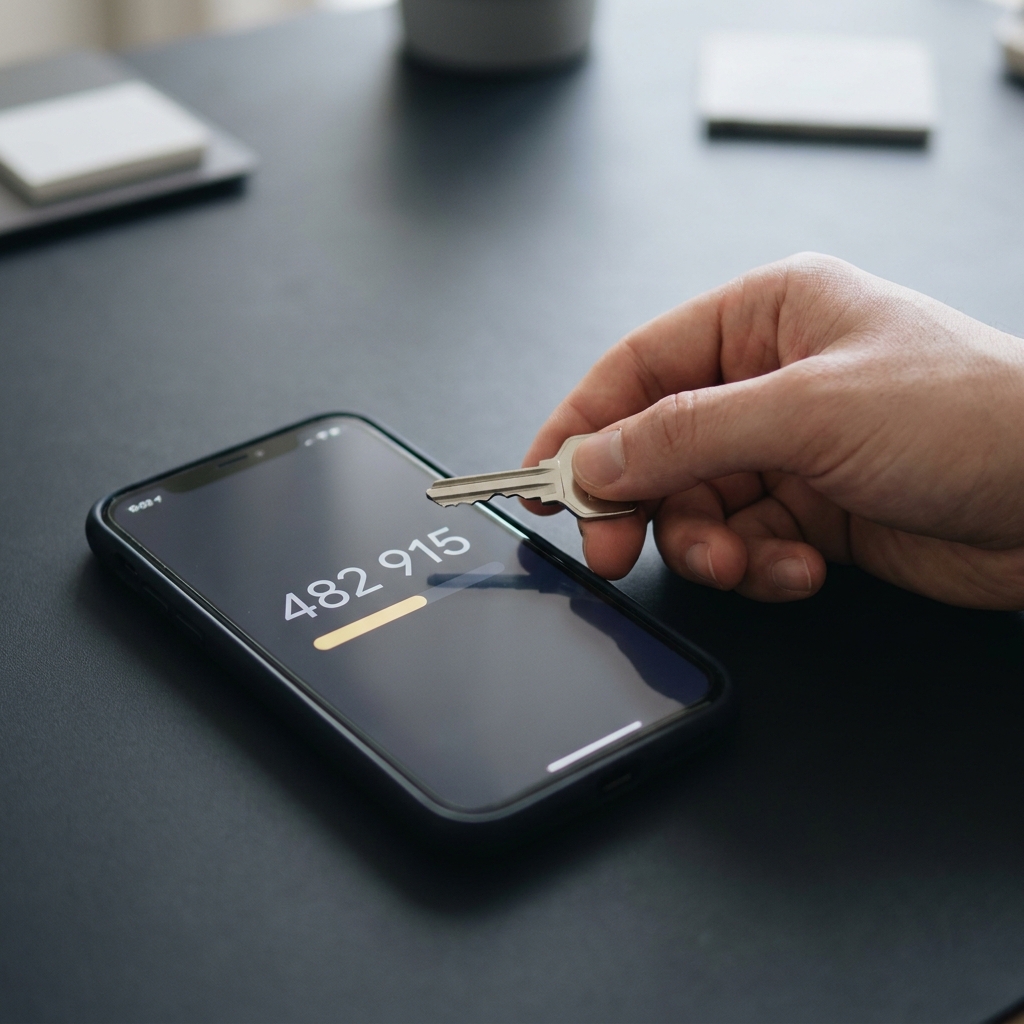
Mobile app issues often resolve after updating or reinstalling the app, since older versions can be incompatible with new authentication flows. Check the app store for updates and reinstall the app if a fresh install is practical.
If login problems persist on one network, try a different network to rule out ISP-level blocks or corporate filters that may disrupt verification delivery or certain API calls required for authentication Microsoft support guidance.
When to contact support and what to tell them
Before contacting support, gather key details: the exact error text, the time and time zone of failed attempts, devices and browsers used, and the last time you successfully accessed the account. Concise details help support find and diagnose the issue faster.
Never send full passwords or one-time codes through support channels. Providers typically accept lightweight verification such as recent transaction or activity timestamps, device fingerprints, or previously registered contact methods to confirm ownership without requiring sensitive documents NIST SP 800-63B guidelines.
Set expectations: some account recoveries can take time if the provider needs to validate ownership; ask for an expected timeline and an incident or ticket number so you can follow up without repeating the same steps.
Typical mistakes that make account problems worse
Sharing passwords or one-time codes with helpers, even well-meaning friends, exposes you to continued risk and can complicate recovery. Do not disclose sensitive login data in messages, and use official support channels instead.
Predictable or reused passwords amplify the damage from breaches elsewhere, because attackers reuse stolen credentials across services. Replace reused passwords with unique ones and protect critical accounts with stronger MFA and recovery options.
Failing to enroll backup recovery methods leaves you vulnerable to losing access if a single factor fails; keep backup codes and an alternate factor registered and stored securely so you can recover without lengthy support interventions NCSC guidance on multi-factor authentication.
Practical walkthroughs: scenario-based fixes
Scenario A: TOTP codes failing on login
Step 1: Pause and do not enter multiple codes rapidly. Step 2: Check the phone or device clock and enable automatic network time synchronization if it is off; resync features in many authenticator apps or a simple device time correction often resolves mismatches Microsoft support guidance.
Step 3: If resyncing time does not help and you have backup codes, use one to sign in and then re-register the authenticator. Expected outcome: regain access and reestablish a synchronized TOTP setup.
Scenario B: verification email not received
Step 1: Check spam and other folders and disable aggressive filters temporarily. Step 2: Request a resend and allow a few minutes; if it still does not arrive, try an alternate email address if the service supports it. Step 3: If messages are blocked repeatedly, suspect sender authentication problems and contact support with the resend time and recipient address so they can inspect message logs Google Workspace Updates on Gmail sender requirements.
Expected outcome: either receipt of the verification email or a support ticket that allows the provider to trace delivery issues.
Scenario C: account locked after multiple failed attempts
Step 1: Wait the documented lockout window rather than repeatedly trying incorrect credentials; repeated attempts can increase lockout duration. Step 2: Use the provider's account unlock or password reset flow and gather the information you will need for verification. Step 3: If automatic unlock does not work, open a support ticket with device and error details and reference any relevant timestamps. Expected outcome: account unlocked either automatically after the wait period or via support-assisted verification following the provider's instructions.
Wrap-up: checklist and next steps
Compact checklist: confirm service status, verify credentials slowly, test a private browser, check device time for TOTP, check email folders and filters, use backup codes, and contact support with clear details if needed.

For long-term resilience, enroll phishing-resistant MFA and keep at least two recovery methods registered; combine that with a password manager and unique passwords to reduce the chance of future lockouts. These steps improve your account security without requiring risky workarounds.
Bookmark this guide and the provider's support pages, and consider updating your recovery options now so the next issue is quicker to resolve.
Check your device clock and enable automatic time sync, then use the authenticator app resync feature or backup codes to regain access.
Provide the exact error text, time and time zone of failures, device and browser used, last successful access, and steps you already tried.
SMS codes are more vulnerable than phishing-resistant options and can be delayed; use stronger authenticators and enroll multiple methods where possible.
References
- https://www.cisa.gov/sites/default/files/2023-10/implementing-phishing-resistant-mfa-fact-sheet_508c.pdf
- https://www.verizon.com/business/resources/reports/2025-data-breach-investigations-report/
- https://support.microsoft.com/en-us/account-billing/common-problems-with-two-step-verification-for-a-work-or-school-account-0b9e74f7-9c04-43c9-99c1-02c42292b3a3
- https://www.ncsc.gov.uk/guidance/multi-factor-authentication-online-services
- https://workspaceupdates.googleblog.com/2024/01/gmail-2024-sender-requirements-enforcement.html
- https://www.fundedplays.com/challenges
- https://doi.org/10.6028/NIST.SP.800-63b
- https://support.google.com/accounts/answer/1066447?hl=en&co=GENIE.Platform%3DAndroid
- https://support.mozilla.org/en-US/questions/1481639
- https://community.synology.com/enu/forum/1/post/136177
- https://www.fundedplays.com
- https://www.fundedplays.com/blogs
- https://www.fundedplays.com/blogs/how-fundedplays-evaluations-work