

What a sports trading slip is and why you might share one
A sports trading slip is the screen or document that shows a single prediction, bet, or trade entry from a prediction or trading platform. It typically shows the event, bet type, odds, stake or virtual bankroll amount, timestamp, and sometimes account identifiers or platform‑specific IDs. Before you share a slip, scan for those visible items so you control what others can see. Consumer privacy guidance recommends checking visible details before posting images to avoid revealing account identifiers or other personal data FTC consumer advice.
People share sports trading slips for a few clear reasons: to show proof of a completed prediction, to keep a readable record for their own tracking, to ask for feedback on selection or sizing, or to celebrate a correct forecast with a private group. Sharing for verification or feedback is appropriate when you remove or hide unnecessary personal details and follow platform rules about sharing account information.
Capture the slip, review and redact sensitive fields, remove metadata, export to a stable format like PDF when appropriate, and send through a private channel or email after confirming the file no longer shows personal information.
Typical fields to check before sharing include the bet details, the stake and odds, the time or timestamp, and any account ID or email visible on the screen. If you plan to post a slip publicly, pay special attention to anything that ties the image back to a real account, like a username, balance, or email address.
Typical fields on a slip to check before sharing
Look for the event name, market or prop, the odds, your stake or virtual balance used, and the timestamp. These are the core data points that most recipients care about when confirming what you predicted.
Common reasons people share slips (proof, record-keeping, asking for help)
Common, legitimate uses for sharing are: providing proof of a claim, keeping an archive for personal performance review, requesting community feedback on selection or sizing, and saving a readable copy for tax or accounting purposes where applicable. Always make sure sharing follows the rules of the platform you used and does not make performance or reward claims that the platform forbids.
A simple 4-step secure workflow to share a slip
Capture, review and redact, export in a stable format, then choose the right channel to share. This four-step flow keeps a routine you can repeat every time so you do not miss a privacy or quality check.
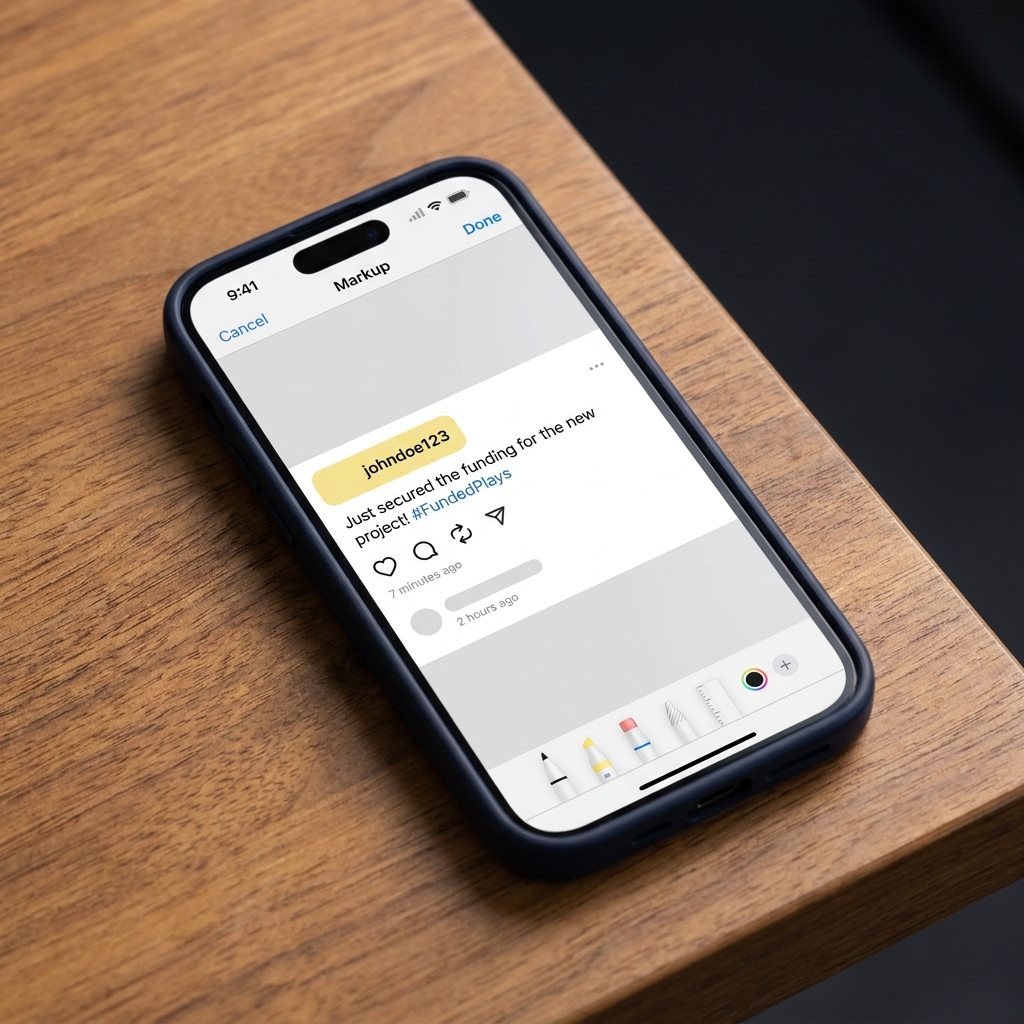
Step 1, capture: use a screenshot tool on mobile, a dedicated capture tool on desktop, or export a view to PDF when the platform and browser allow that. Printing or saving a page to PDF usually preserves layout and produces a cleaner file than piecing screenshots together The Verge guide to saving a webpage as a PDF.
Step 2, review and redact: inspect the image or PDF for account IDs, visible balances, emails, timestamps, or other personal fields. Use built‑in editors to crop or draw over sensitive text so those details are not visible to recipients.
Step 3, export in a stable format: choose PDF when you need a faithful, multi‑page record or when you want to avoid stitching errors. Choose full resolution PNG or JPG when you need a simple image but make sure the file will not be heavily compressed by the app you plan to use.
Step 4, choose the right channel: send private messages or email for verification, use ephemeral or restricted channels when possible, and ask recipients not to re‑post if privacy is a concern. When available, use your operating system share menu to pick a destination and avoid unintended resizing or compression.
Step 1: Capture (screenshot or PDF)
For single‑screen slips, a screenshot is usually the simplest capture. For multi‑page views or shareable records, use your browser Print or Save as PDF option to get a stable file that preserves layout and pagination The Verge guide to saving a webpage as a PDF.
Step 2: Review and redact
Open the captured file and look for personal or account‑linking items. If you see an account ID, email address, or a visible balance, redact or crop those areas before sharing. Treat timestamps and notification overlays as sensitive if they reveal activity windows.
Step 3: Export in a stable format
PDF is often best for multi‑page or long slips because it keeps the original layout and avoids the common stitching problems that reduce legibility. If you choose an image, save at full resolution and check the file after any app you plan to use for sharing, since some messaging platforms compress images automatically.
Step 4: Choose the right channel and share
Select private channels for verification, email for records, and public channels only after cropping and redacting. Use ephemeral or temporary sharing features if you do not want your slip to persist in someone else’s feed.
Capture on mobile: iPhone and Android step-by-step
iPhone: hardware shortcut and Markup editor
On iPhone, use the hardware button shortcut to take a screenshot and then tap the preview to open the Markup editor. The editor lets you crop the image, add blocks of color or drawn lines to obscure text, and share directly from the Share Sheet when you are done Apple Support.
Android: native screenshot shortcut and quick edit toolbar
Most Android devices offer a screenshot shortcut and a quick edit toolbar to trim, annotate, or crop immediately after capture. Use those built‑in editing options to remove notifications or sensitive overlays before sending the image to anyone Android Authority guide.
If your slip spans multiple screens, avoid unsafe stitching apps that require extra uploads. Where the platform allows an export or a print view, prefer exporting to PDF rather than stitching. If you must stitch, do it locally and check the final image for clarity and for accidental inclusion of private fields.
quick redaction steps for phone screenshots
Use the phone editor before sharing
Capture on desktop: Windows Snipping Tool and browser PDF export
Using Windows 11 Snipping Tool to capture and annotate
On Windows 11, the Snipping Tool supports region or window captures, basic annotation, copying to the clipboard, and saving to common image formats. Use its rectangle or window modes to capture only the slip area and use the built‑in pen or highlighter to obscure any account IDs before saving Microsoft Support.
Print or Save to PDF from your browser for a high-fidelity slip
When a platform page or slip view renders in your browser, use Print or Save as PDF to create a clean file that preserves layout and fonts. A saved PDF is usually easier for others to read and archive than a stitched screenshot, and it often avoids artifacts that occur when images are compressed The Verge guide to saving a webpage as a PDF.

Choosing image vs PDF depending on audience
Send a PNG or JPG to a friend who wants a quick look, and send a PDF when you need a readable record, especially for multi‑page slips. PDFs also avoid many messaging apps’ automatic resizing or recompression of images, which can make numbers and small text unreadable.
Review, redact and protect metadata before sharing
Start with a short checklist: scan for account IDs, email addresses, balances, timestamps, and any overlayed notifications. Those are the most common items that can identify you or reveal activity windows and should be removed or obscured before sharing.
Understand EXIF and other metadata: photos and some exports can carry hidden information like creation time, device model, or location. Removing or avoiding that metadata helps protect your privacy when you share images online EFF guide to EXIF and removal.
See the FundedPlays Challenges page for details on evaluation programs
Use the checklist above now on a practice slip to make sure you can crop and redact cleanly before sharing a real account image.
On mobile, use Markup or the Android editor to draw a block of color over usernames or to crop out the whole header that contains email or ID text. On desktop, the Snipping Tool, image editors, or a PDF editor can add solid shapes that mask sensitive fields. After redaction, save a copy and re‑open it to confirm the sensitive text is no longer readable or recoverable.
To remove embedded metadata from images, use your device settings or a metadata removal tool before sending. Some operating systems let you remove location data when you share a photo, and some image viewers let you export a stripped copy. When possible, export the slip as a PDF and then check the file properties, because PDFs often contain less device metadata than raw photos.
Best channels and format choices for different audiences
Private messages and email are the right default when you need verification or help from a small audience. They limit exposure and make it easier to ask recipients to delete the file after review. Use group chats only when all members are trusted and when sensitive fields are removed.
Be cautious when posting slips publicly on social media. Crop all identifying details and avoid claiming guaranteed outcomes when you post. Public posts are persistent and may be screenshotted by others, so assume a wide audience.
Some messaging apps compress images to save bandwidth, which can harm legibility. If you need the recipient to see small numbers clearly, send a PDF or a full‑resolution image file instead of relying on a compressed upload The Verge guide to saving a webpage as a PDF.
Common mistakes and privacy pitfalls to avoid
Leaving full account screens, balances, or email addresses visible is the most frequent error. These fields can identify you or be used to piece together more information about your account activity. Always crop these out or redact them before sharing.
Forgetting to remove metadata or EXIF data from images is another common pitfall. Metadata can reveal the time and location a photo was taken, or the device you used. That information may not be obvious on the image itself but can be retrieved by someone who inspects the file FTC consumer advice.

Relying on low‑quality stitched screenshots also causes problems. Stitched images can blur or misalign numbers, and they can capture unintended notifications. If a platform offers a PDF export, prefer it over stitching. If you must stitch, do it locally and verify the final image before sending.
Quick checklist and closing recommendations
One-page checklist: capture the slip with the right tool, review for visible account IDs and timestamps, redact or crop sensitive fields, remove metadata if possible, choose PDF for records or full resolution images for quick checks, and send through a private channel or email when possible.
Practice this workflow with a mock or nonsensitive slip so you can perform the steps quickly when you need to share a real one. Follow platform rules and avoid implying guaranteed outcomes when you show past predictions or competition results.
Yes. Many phones and desktop image tools let you remove or strip EXIF metadata before sending images. You can also export to PDF or use a metadata removal tool to eliminate locational or device details.
Use PDF for multi‑page or archival copies because it preserves layout. Use a full‑resolution image for quick checks, but avoid compressed uploads if the app will reduce clarity.
Redact account IDs, email addresses, visible balances, timestamps if they reveal activity, and any notifications that reveal personal details. Confirm redaction by reopening the saved file.
References
- https://consumer.ftc.gov/articles/sharing-photos-check-your-privacy-settings-first
- https://www.theverge.com/23677219/how-to-save-a-webpage-as-pdf
- https://support.apple.com/en-us/HT200289
- https://www.androidauthority.com/how-to-take-a-screenshot-on-android-616092/
- https://support.microsoft.com/en-us/windows/use-snipping-tool-to-capture-screenshots-00246869-1843-655f-f220-97299b865f6b
- https://www.eff.org/deeplinks/2024/08/what-exif-metadata-and-how-remove-it-your-photos
- https://www.fundedplays.com/challenges
- https://www.fundedplays.com
- https://www.fundedplays.com/blogs
- https://www.fundedplays.com/blogs/how-fundedplays-evaluations-work
- https://techcommunity.microsoft.com/discussions/windows11/how-can-i-remove-metadata-from-images/4408376
- https://www.canto.com/blog/remove-metadata-from-photo/
- https://www.privacyguides.org/articles/2022/04/09/integrating-metadata-removal/