
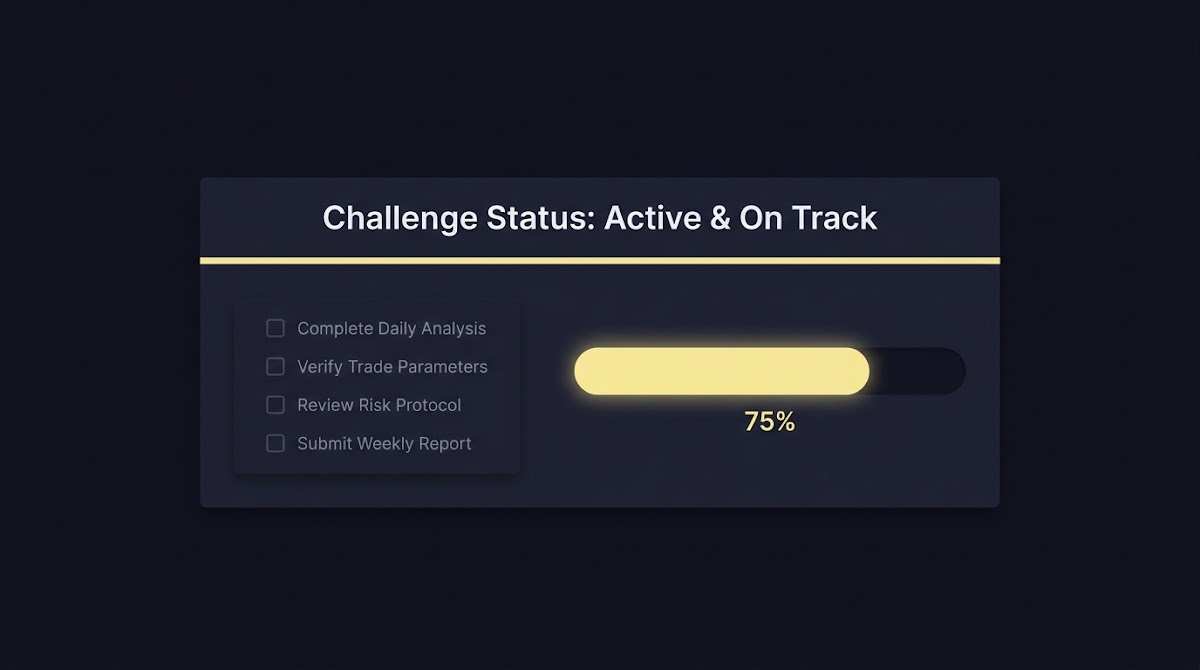
How to Check Your Challenge Status, quick overview
When you need to know what happened with a FundedPlays challenge, the dashboard is the single best place to start. Modern design guidance stresses that interfaces should keep users informed about current activity, so a visible status display helps you see whether an evaluation is not started, in progress, or completed at a glance Nielsen Norman Group on visibility of system status.
Most challenge workflows show status in a few consistent places: a top-line status banner on the challenge detail page, a task list that breaks required actions into items, and optional email updates that notify you when a step completes. Task lists with explicit labels such as Not started, In progress, and Completed make it easier to match a visible state to the next action you should take GOV.UK task list pattern.
Check your challenge status on the Challenges page
Take a moment to open your Challenges dashboard and confirm the current status shown for your active evaluations.
Quick definitions help you form a mental model fast: a status label usually maps to a small set of expected next steps, and seeing where your challenge sits reduces uncertainty and avoids unnecessary support requests.
What challenge status means and common status labels
Common labels are short cues, not legal rules. Not started typically indicates no actions have been taken or that the evaluation window has not opened. In progress means your evaluation is active and the system is tracking your simulated bankroll and predictions. Completed means the evaluation phase has ended and final checks or tallies are either pending or done. For platform design, succinct labels and consistent usage matter because they guide immediate user decisions and next steps GOV.UK task list pattern.
Some platforms add additional labels like Paused or Failed to reflect temporary holds or rule violations, but the exact meaning of those labels is platform-specific. Always consult the challenge rules to understand how label transitions are determined and what actions you can take to move forward.
Task-list patterns help surface outstanding actions in order and reduce cognitive load. When you see a task list on your challenge detail page, it should show which activities remain and which are complete, so you can focus on the next required step rather than hunting through unrelated screens Nielsen Norman Group on visibility of system status.
Step-by-step: How to check status in the dashboard
1. Sign in and open Challenges. Use the same account you used to register for the challenge, and confirm you are on the Challenges or My Challenges page. If you have multiple accounts, stop and verify you are signed into the intended account before proceeding.
2. Select the specific challenge you want to check. Open the challenge detail page so you can see the top-line status banner, any task list or progress bar, and the most recent activity timestamp.
Open the Challenges dashboard, select the challenge, read the status banner and timestamp, perform a hard refresh if necessary, check email notifications and spam, and gather screenshots and IDs before contacting support.
3. Read the status banner and task list. Look for explicit labels and a timestamp that shows when the status last changed. Many systems show a last-updated time near the status; use that to judge whether the display is fresh or possibly stale.
4. Check the progress indicator or progress bar for completion percentage or remaining steps, and review any in-line tooltips or short help texts that explain drawdown limits, scoring rules, or other evaluation constraints.
5. Confirm the challenge ID and your account ID. Small mismatches in IDs can lead to looking at a different challenge or a different account, which is a common source of confusion.
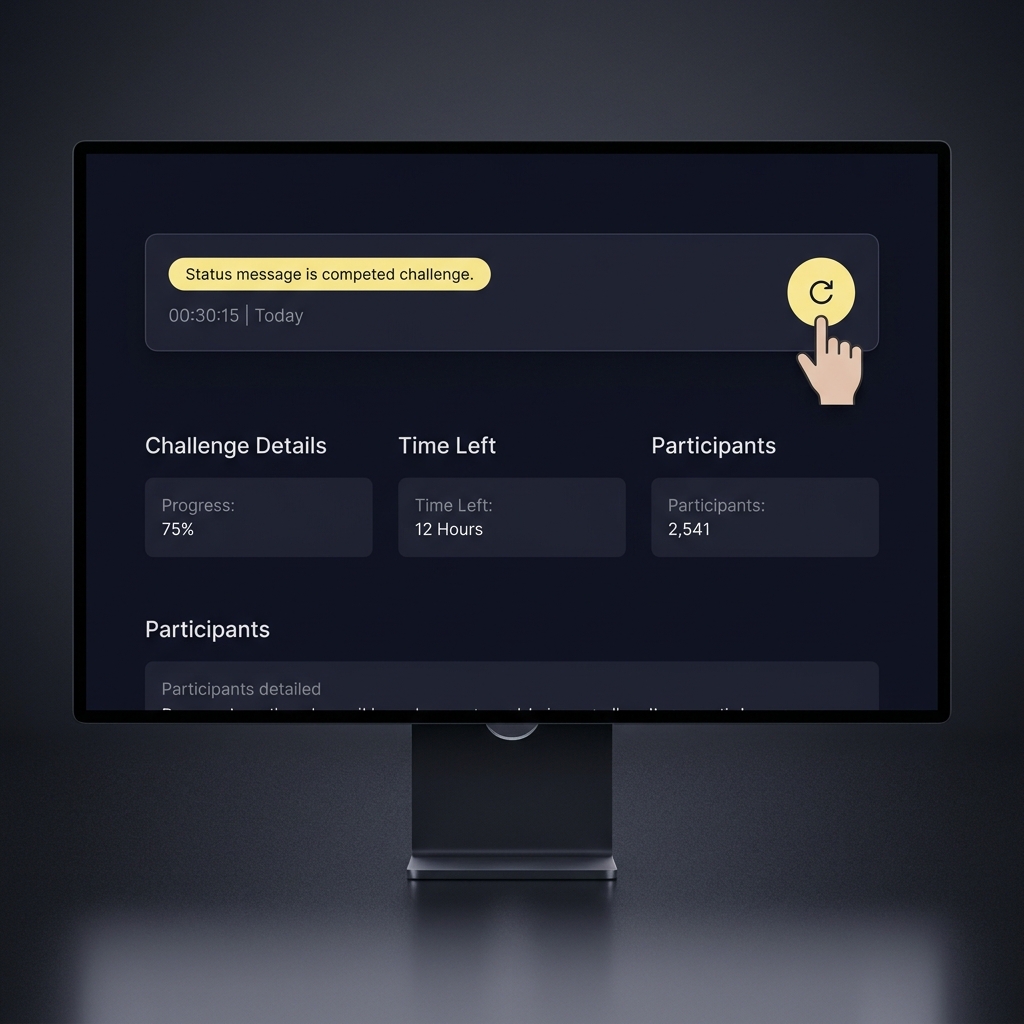
6. If something looks off, take a screenshot that includes the status banner, timestamp, and the browser address bar so support has context about the exact page you saw.
Email notifications and other off-site status channels
Email can be a helpful secondary channel to alert you to status changes, but it should not be the only source of truth. Industry reports show that email delivery can be delayed or filtered, so pairing email checks with a direct dashboard verification is a safer routine Validity email deliverability benchmark report.
Simple email troubleshooting reduces missed alerts. Check your spam folder, verify the account email address in your profile, and add the platform sender to your allow list or safe sender list in advance to improve deliverability.
Quick email troubleshooting checklist for status alerts
Run these steps before contacting support
If you do not see an expected status email, inspect message headers or delivery timestamps when possible. That information can show whether a message was delayed or blocked and is useful to include in a support ticket.
If the on-screen status looks wrong: cache, refresh, and quick fixes
Sometimes the page you see is a cached copy and not the live state. HTTP caching can cause stale content to display, which makes a status appear outdated even though the backend has updated. A hard refresh or clearing cookies often retrieves the latest state from the server MDN Web Docs on HTTP caching.
Quick, copy-ready fixes include a hard reload in your desktop browser, signing out and back in, or clearing the app cache for mobile clients. After forcing a refresh, re-open the challenge detail page and check the timestamp near the status to confirm a new value appears.

If the status still looks inconsistent after these steps, record the exact time you refreshed, take screenshots, and include those details when you contact support so the team can correlate logs and events.
Accessible status updates: what to expect if you use assistive tech
Accessible interfaces announce status changes programmatically so users with assistive technologies are notified without an abrupt focus shift. The ARIA role="status" pattern is intended to provide these non-disruptive announcements, letting screen readers passively inform users of a change MDN on ARIA role=status (WAI-ARIA technique ARIA22).
If your screen reader does not report status changes, try a basic test: perform an action that should update the challenge state and listen for the announcement. If nothing is announced and the visual status changed, include that detail in your support ticket so engineers can verify programmatic notifications.
Accessible status is part of overall visibility of system state. When status updates are exposed correctly to assistive tech, users can stay informed without losing context or having their workflow interrupted.
When to contact support and how to write an effective ticket
Open a support request when you have confirmed the dashboard shows an incorrect or stale status after trying refresh steps and when email checks have not resolved the discrepancy. Good tickets reduce back-and-forth and speed resolution by giving support the context they need up front Zendesk guidance on writing effective support tickets.
Include these items in every ticket: your account ID, the challenge ID, the exact timestamp you saw, the last-updated timestamp shown near the status if any, the browser or app version, and screenshots or short screen recordings that show the problem.
Sample subject and body you can adapt: Subject: Challenge status mismatch for Challenge ID 12345. Body: I refreshed the challenge page at 2026-08-01 14:22 UTC and the top banner still shows In progress while my email says Completed. Account ID: user@example.com. Browser: Chrome 115. Steps tried: hard refresh, cleared cookies. Attached: two screenshots showing the banner and the timestamp.

One frequent mistake is checking the wrong account or challenge. If you maintain more than one login or if your family shares a device, confirm the account identity before assuming a status is wrong. Cross-check the challenge ID in the page URL or the challenge detail header to avoid this error.
Another common issue is relying only on email. Because email can be delayed or filtered, use a routine that includes a direct dashboard check, a quick hard refresh, and a spam-folder scan before concluding a status change did not occur Validity email deliverability benchmark report.
A practical routine to confirm a status: 1) open the challenge detail page, 2) hard refresh the browser or clear app cache, 3) check the timestamp near the status, 4) verify email and spam folder, and 5) collect screenshots before contacting support. Following these steps reduces unnecessary tickets and helps the support team act faster MDN Web Docs on HTTP caching.
Practical examples and sample scenarios
Scenario 1, In progress with no recent activity: You see In progress on the dashboard but your recent activity feed shows no entries for hours. Verification steps: refresh the page, check the last-updated timestamp, inspect browser console or network errors if you are able, and confirm you are viewing the correct challenge ID. If the status still looks frozen, capture a screenshot and open a support ticket including the timestamps and the steps you tried MDN Web Docs on HTTP caching.
Scenario 2, Email says Completed but dashboard shows In progress: First, verify the email headers and delivery time to confirm the message is genuine and not delayed. Next, hard refresh the dashboard and check for a newer timestamp. If the dashboard still shows In progress after refresh, collect screenshots of the email and the challenge detail page and include both in your ticket so support can reconcile system logs Zendesk guidance on writing effective support tickets.
For both scenarios, explaining the steps you already took and attaching clear, time-stamped screenshots helps support diagnose whether the issue is client-side caching, an email delivery delay, or a server-side processing delay.
Summary and next steps
Quick checklist you can follow now: open Challenges, select the specific challenge, read the status banner and timestamp, hard refresh or clear cache, check email and spam folder, collect screenshots, then contact support with account and challenge IDs and the details of what you tried.
Remember that steps are platform-specific rules determine how status transitions occur and that support may need time to check logs. These steps aim to reduce uncertainty and make your inquiry more effective when escalation is required Nielsen Norman Group on visibility of system status.
Status updates are intended to be timely, but visible timestamps and task lists indicate when a change occurred. If the display seems stale, try refreshing the page and checking email alerts before contacting support.
Include your account and challenge IDs, exact timestamps you observed, the browser or app version, and screenshots or recordings showing the issue and any error messages.
Test a status change and note whether an announcement occurs. If nothing is announced even though the visual status changed, report the missing announcement in your support ticket and include steps to reproduce.
References
- https://www.fundedplays.com
- https://www.nngroup.com/articles/visibility-system-status/
- https://design-system.service.gov.uk/patterns/task-list/
- https://www.fundedplays.com/blogs/how-fundedplays-evaluations-work
- https://www.validity.com/resource-center/reports/email-deliverability-benchmark-report-2025/
- https://developer.mozilla.org/en-US/docs/Web/HTTP/Caching
- https://www.fundedplays.com/challenges
- https://developer.mozilla.org/en-US/docs/Web/Accessibility/ARIA/Roles/status_role
- https://www.w3.org/WAI/WCAG22/Techniques/aria/ARIA22
- https://www.zendesk.com/blog/write-support-ticket/
- https://www.fundedplays.com/blogs